PRINT PLAYBOOK GUIDE - FILE SETUP & DESIGN
Part of Series: File Setup
Image Resolution for Printing
 ND4C Print Experts
An image has enough resolution for printing when its pixel dimensions provide sufficient detail at the size it will actually appear on the finished product. For most commercial print work viewed at normal reading distance, 300 pixels per inch (PPI) at final reproduction size is a reliable target. The important measurement is effective resolution—the resolution remaining after an image has been scaled and positioned in the layout.
A photograph labeled 300 PPI is not automatically suitable for every print size. Enlarging it reduces effective resolution and can produce a soft or pixelated result.
What Determines Whether an Image Has Enough Resolution?
Three factors matter: native pixel dimensions (the actual pixel width and height), final reproduction size (how large the image appears in print), and viewing conditions (how closely a reader examines it). Image quality matters too: poor focus, motion blur, or JPEG artifacts can remain visible even in a file that measures 300 PPI.
For the standard resolution recommendation, see the related Print Playbook guide 300 DPI Explained.
Understanding Native Pixel Dimensions
Every raster image has a fixed number of pixels, expressed as width × height. A 2400 × 1800-pixel image contains about 4.3 million pixels. Its available pixels determine how large it can print at a chosen PPI without resampling.
| Target resolution | Size of a 2400 × 1800-pixel image |
|---|---|
| 300 PPI | 8 × 6 inches |
| 200 PPI | 12 × 9 inches |
| 150 PPI | 16 × 12 inches |
| 100 PPI | 24 × 18 inches |
These are mathematical relationships, not universal approvals for print quality.
Why an Image's PPI Label Can Be Misleading
An image may say 72, 150, or 300 PPI in its metadata. That number describes a relationship between pixels and intended physical size; by itself, it does not establish whether the image is suitable for the final layout. A 3000 × 2400-pixel photo labeled 72 PPI can be assigned 300 PPI without changing its pixel dimensions. Its indicated print size changes, but its actual image detail does not. Changing metadata without resampling does not improve quality.
Actual PPI vs. Effective PPI
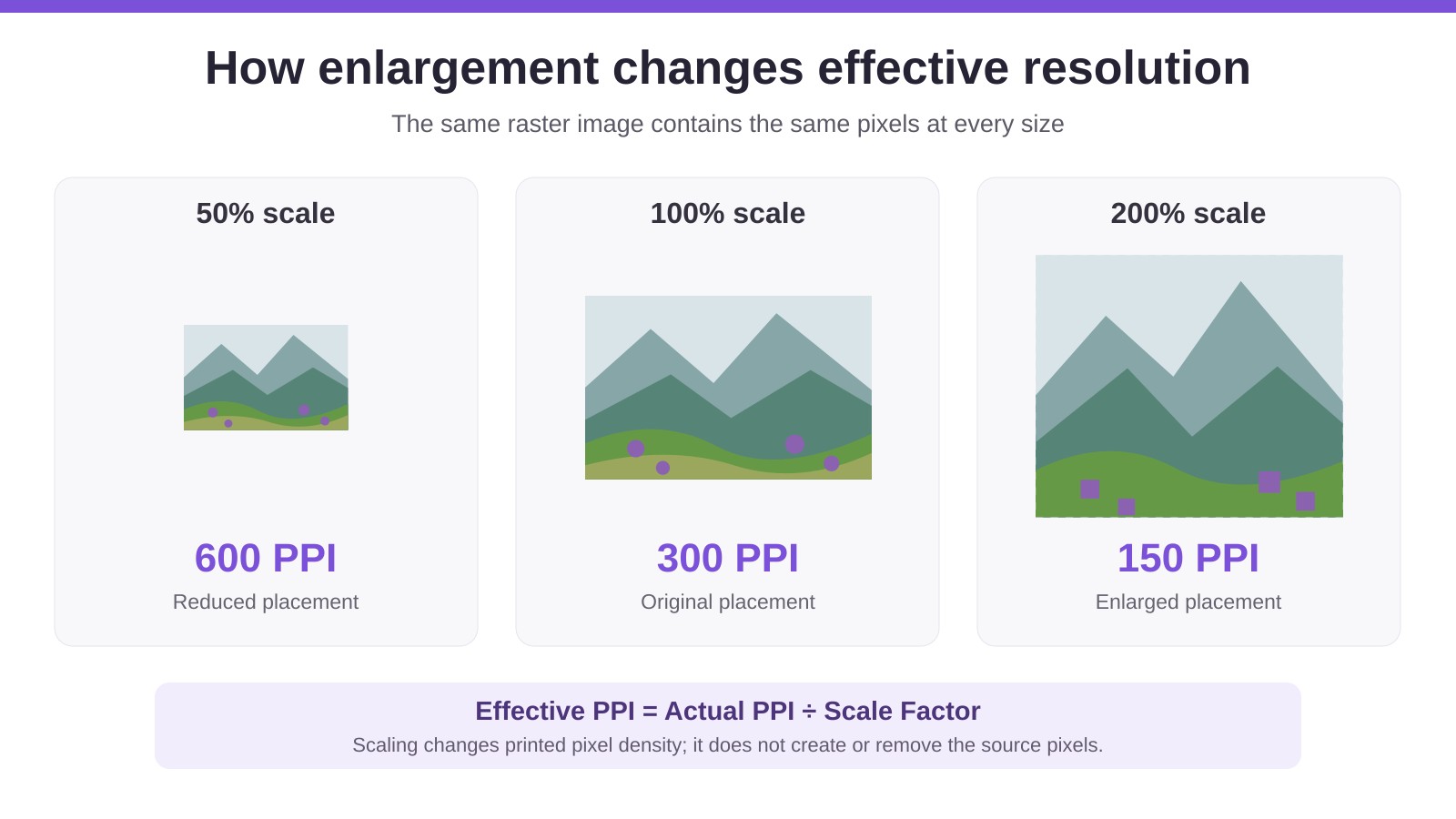
Actual PPI describes the resolution at the image's original placement size. Effective PPI describes resolution after scaling within a layout. Effective PPI is generally the more useful prepress measurement.
How Enlargement Changes Effective Resolution
| Image scale | Effective PPI from 300 PPI source | Result |
|---|---|---|
| 50% | 600 | Reduced |
| 75% | 400 | Reduced |
| 100% | 300 | Original size |
| 125% | 240 | Enlarged |
| 150% | 200 | Enlarged |
| 200% | 150 | Doubled in size |
Example: 300 ÷ 1.5 = 200 effective PPI at 150% enlargement.
The image still contains the same pixels; enlargement spreads them across a larger printed area. Reducing the image has the opposite effect.
How to Calculate the Resolution Required for Printing
Multiply the finished image dimension in inches by your target PPI to determine the necessary source pixels.
A photograph placed at 6 × 4 inches in a brochure needs 1800 × 1200 pixels to achieve 300 PPI without resampling (6 × 300 and 4 × 300).
Common Print Size Examples
| Final image size | Pixels at 300 PPI |
|---|---|
| 2 × 2 inches | 600 × 600 |
| 4 × 6 inches | 1200 × 1800 |
| 5 × 7 inches | 1500 × 2100 |
| 8 × 10 inches | 2400 × 3000 |
| 8.5 × 11 inches | 2550 × 3300 |
| 11 × 17 inches | 3300 × 5100 |
These examples assume the image fills the stated dimensions without additional enlargement or a crop that changes the usable pixel area. If the image extends to the trimmed edge, account for bleed. ND4C's standard bleed is 0.125 inch beyond each edge; the product-specific template takes precedence.
How to Check Image Resolution in Design Software
Adobe Photoshop
- Open the original image and choose Image > Image Size.
- Review the existing pixel dimensions.
- Disable Resample so you can evaluate existing pixels without adding or removing them.
- Enter the intended printed width and height.
- Review the resulting PPI.
Changing the resolution field alone cannot add image detail when Resample is off.
Adobe InDesign
- Select the placed image.
- Open Window > Links.
- Select the image link and expand Link Info.
- Compare Actual PPI and Effective PPI.
- Recheck after making layout adjustments.
InDesign accounts for image scaling when showing effective resolution, making the Links panel particularly useful for finding overly enlarged photographs.
Adobe Illustrator
Select a linked raster image and inspect the Links panel information for its effective PPI. Vector paths are not limited by raster-image resolution, but placed photographs, textures, and raster logos still are. See Vector vs Raster Graphics for further explanation.
Checking the Final PDF
A PDF can contain multiple images at different effective resolutions even when its finished page dimensions are correct. Professional PDF preflight software can flag embedded images below an appropriate threshold. A warning is a reason to inspect the image; it is not, by itself, a complete judgment of visual quality.
How Viewing Distance Affects Resolution Requirements
Fine details become easier to notice as the viewer moves closer to a print. Business cards, brochures, catalogs, and flyers are commonly inspected at reading distance. Posters may be viewed from several feet away, allowing a different resolution recommendation. This does not mean every large image can safely use low resolution.
ND4C's routine target is 300 PPI at final reproduction size, and ND4C maintains separate established lower-resolution guidance for posters. Follow the applicable product requirements instead of assuming one threshold applies to every application.
Photographs vs. Line Art: Different Resolution Needs
Continuous-Tone Photographs
Photographs contain gradual changes in color and brightness. Well-prepared photographs commonly reproduce effectively around 300 PPI at normal reading distance.
Rasterized Line Art
Thin rules, small lettering, and sharp black-and-white line drawings can show jagged edges more readily when rasterized at insufficient resolution. For certain unusually detailed raster applications, 600 PPI or more may be appropriate. Keep type, logos, and geometric illustrations in vector form where practical. ND4C rarely needs 600 PPI for routine photographs.
How to Fix a Low-Resolution Image
1. Reduce the Printed Size
A 1200-pixel-wide image placed at 8 inches is 150 PPI. Reduce its printed width to 4 inches and its effective resolution rises to 300 PPI without altering source pixels.
2. Obtain a Higher-Resolution Original
Request the original camera photograph, high-resolution export, or another suitable source instead of relying on screenshots, web previews, or small thumbnails.
3. Use Vector Artwork Where Suitable
For logos and simple illustrations, obtain original vector artwork when possible. Placing a low-resolution logo inside a vector application does not automatically make it resolution-independent.
4. Evaluate Upscaling Carefully
Traditional interpolation estimates additional pixels from neighboring pixels; AI-assisted upscaling may reconstruct plausible detail. Neither process can guarantee authentic information that was never present. Upscaled images can acquire synthetic textures, distorted small features, oversharpened edges, or artificial lettering.
Inspect the original, enlarge conservatively, check the processed image at intended print size, examine faces and fine details, and review the final PDF. A better original remains preferable when significant detail is missing.
Why a 300 PPI Image Can Still Print Poorly
JPEG Compression Artifacts
Excessive lossy JPEG compression can cause block patterns, halos, smearing, and damaged fine detail. Enlarging the image does not remove that original damage.
Poor Focus or Motion Blur
Millions of pixels do not guarantee a sharply focused subject. Resolution cannot reliably recreate details that the camera never captured.
Excessive Sharpening
Heavy sharpening can create bright or dark halos and unnatural edges. Evaluate sharpening at the intended reproduction size.
PDF Export Downsampling
Export settings can discard image pixels even when the source photographs were adequate. Inspect the final PDF if images appear unexpectedly soft. See PDF Print File Requirements for broader file preparation.
Common Image Resolution Mistakes
| Mistake | Better approach |
|---|---|
| Checking only the PPI metadata label | Evaluate effective PPI at final placement size |
| Enlarging a source too far | Use a higher-resolution original or smaller placement |
| Changing 72 PPI metadata to 300 | Inspect source pixel dimensions |
| Using web thumbnails | Request original artwork |
| Upscaling without visual review | Inspect artifacts and unnatural details |
| Rasterizing fine text | Preserve vector type where practical |
| Ignoring PDF downsampling | Inspect the final exported PDF |
How ND4C Checks Image Resolution During Prepress
ND4C uses 300 PPI at final reproduction size as its routine target for submitted raster imagery. ND4C routinely checks effective PPI in the final submitted print PDF rather than relying only on source-image metadata. This catches images enlarged after placement.
- Low-resolution images: ND4C usually requests replacement artwork, even when a particular viewing distance might make the image acceptable in a different workflow.
- Upscaled artwork: AI-enhanced and interpolated images are evaluated case by case for visual quality.
- File Fix: ND4C's optional paid File Fix service can make limited image adjustments when feasible, but it cannot reliably recreate substantial missing detail.
- Posters: Established poster-specific recommendations may be lower than the standard 300 PPI target.
Corrections can delay production. ND4C recommends using the free product-specific artwork templates to establish finished dimensions, bleed, and layout boundaries.
Image Resolution Preflight Checklist
- ☐ Confirm original pixel dimensions.
- ☐ Establish final print dimensions.
- ☐ Inspect effective PPI after all scaling.
- ☐ Review significantly enlarged images.
- ☐ Check sharpness and JPEG artifacts.
- ☐ Keep fine text and logos vector-based where practical.
- ☐ Inspect any upscaled image for artificial detail.
- ☐ Verify that PDF export did not downsample excessively.
- ☐ Review the final PDF and product-specific template.
See the related Print File Preflight Checklist for the complete submission review.
Frequently Asked Questions About Image Resolution
Is 300 PPI enough for professional printing?
Yes. It is a reliable target for most commercial-print photographs viewed at normal reading distance, though some applications differ.
Is a 72 PPI image always too low for printing?
No. The original pixel dimensions and intended print size determine effective PPI. A large image labeled 72 PPI may have enough pixels for a smaller printed placement.
How do I know if an image is too small to print?
Divide the pixel width and height by the corresponding intended print dimensions in inches. Compare the effective PPI with your printer's applicable target.
Does enlarging an image reduce resolution?
Yes. Enlargement spreads its existing pixels over a larger printed area, lowering effective PPI unless additional pixels are created by resampling.
Can AI upscaling make an image print-ready?
Sometimes, but it may produce artificial detail. ND4C evaluates AI-upscaled and interpolated artwork case by case.
Is 600 PPI better than 300 PPI?
Not necessarily. Ordinary photographs rarely benefit significantly, while certain detailed raster line-art applications may.
Should posters always be 300 PPI?
No. Viewing distance and production requirements matter. Follow the applicable poster-specific recommendations.
Can a 300 PPI image still print blurry?
Yes. Focus problems, motion blur, compression artifacts, or artificial upscaling can remain visible despite adequate effective PPI.
Can ND4C's File Fix service repair low-resolution images?
Limited adjustments may be feasible, but significant missing detail often requires a higher-resolution original.
Prepare Resolution-Correct Artwork for Wholesale Printing
Checking effective resolution before submission helps print resellers, designers, and trade printers catch issues before they affect production. ND4C supplies free downloadable product-specific artwork templates and recommends using them to prepare print-ready PDFs.
Qualified print shops, designers, brokers, and other trade customers can create an ND4C account for exclusive wholesale pricing and production options.
ND4C is a wholesale trade printer with more than two decades of industry experience. Our Print Playbook guides draw on firsthand expertise across prepress, production, customer support, design, and print technology to help retail printers and print resellers make better production decisions.