PRINT PLAYBOOK GUIDE - FILE SETUP & DESIGN
Part of Series: File Setup
PDF Print File Requirements: What Makes a PDF Print-Ready?
 ND4C Print Experts
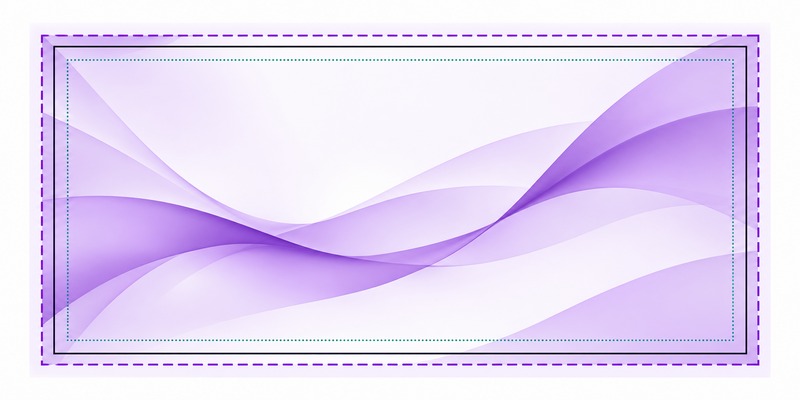
A print-ready PDF is a file prepared with the correct finished dimensions, bleed, fonts, image quality, color information, and production-compatible settings for commercial printing. Unlike a PDF intended primarily for screen viewing or office printing, it must preserve the information needed to reproduce the artwork correctly through a professional printing workflow.
Simply saving a document as a PDF does not make it print-ready. The document setup, PDF export settings, and technical contents all determine whether a file is suitable for commercial production.
For print resellers, brokers, and designers, understanding these requirements helps prevent artwork revisions, unexpected printing results, and production delays.
What Are the Requirements for a Print-Ready PDF?
A properly prepared PDF must satisfy several fundamental production requirements.
| Requirement | What to Verify | Why It Matters |
|---|---|---|
| Page dimensions | Correct finished size | Prevents scaling and sizing errors |
| Bleed | Artwork extends beyond trim | Prevents unintended white edges |
| PDF page boxes | Trim and bleed boundaries are correct | Helps production systems interpret page geometry |
| Fonts | Text is appropriately outlined or fonts are embedded | Prevents missing or substituted typefaces |
| Image resolution | Sufficient effective resolution | Preserves image detail |
| Color | Correct color spaces and color information | Reduces unexpected conversions |
| Transparency | Effects are compatible with production | Prevents rendering problems |
| PDF compatibility | Suitable export format | Supports reliable processing |
| Preflight | Technical issues have been checked | Identifies problems before production |
These are established commercial printing principles. However, specific requirements can vary according to the printer, product, printing method, and finishing process.
1. Correct Page Dimensions and Finished Size
A print-ready PDF must identify the intended finished dimensions of the printed product.
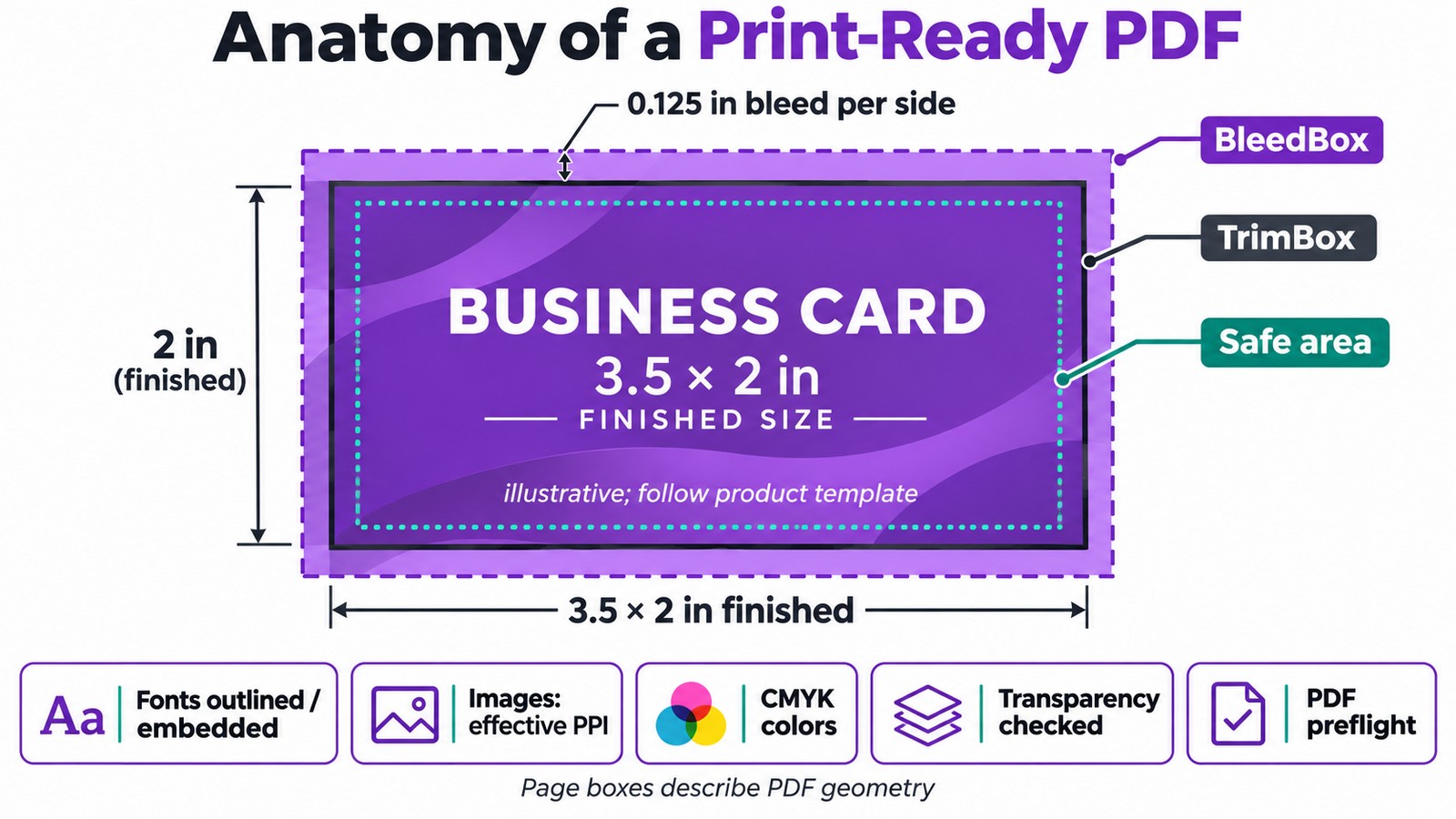
For example, a standard US business card measures 3.5 × 2 inches after trimming. Its artwork may be larger because bleed extends beyond the finished edges.
Three measurements should be distinguished:
- Finished size: The dimensions after trimming.
- Artwork size including bleed: The overall area containing artwork that extends beyond trim.
- PDF page size: The dimensions represented by the PDF's page boundaries.
For a standard business card requiring 0.125-inch bleed:
| Measurement | Width | Height |
|---|---|---|
| Finished dimensions | 3.5" | 2" |
| Bleed per edge | 0.125" | 0.125" |
| Artwork including bleed | 3.75" | 2.25" |
Bleed adds 0.25 inch to both the overall width and height because it extends beyond two opposing edges.
However, the PDF's internal page boxes may distinguish the finished size from the artwork size. An oversized PDF page is not automatically incorrect if its trim and bleed boundaries are properly defined.
For ND4C orders, customers should use the free product-specific artwork template to establish the correct dimensions.
2. Understanding PDF Page Boxes
PDF files contain internal page boundaries known as page boxes. These define how the page is displayed, interpreted, and processed.
TrimBox
The TrimBox identifies the intended finished dimensions of the page after trimming.
For a standard 3.5 × 2-inch business card, the TrimBox should correspond to those finished dimensions.
BleedBox
The BleedBox identifies the region available for bleed artwork beyond the finished page.
For products requiring bleed, this area must accommodate the necessary extension of backgrounds, photographs, and other edge-to-edge elements.
MediaBox
The MediaBox defines the overall PDF page boundary. Other page boxes ordinarily fall within it.
CropBox
The CropBox controls the area displayed or clipped by many PDF viewing applications. It does not necessarily represent the intended finished product dimensions.
ArtBox
The ArtBox can identify the meaningful artwork area within the page, although it is less central to routine commercial printing workflows.
Why Page Boxes Matter
A PDF can appear correctly sized on screen while containing incorrect internal boundaries.
For example, a file may visually contain appropriate bleed but have a TrimBox that does not correspond to the intended finished dimensions. This can create problems when production software interprets the file.
ND4C production insight: ND4C routinely checks PDF page boxes during artwork review. Correct TrimBox and BleedBox information helps establish the intended page geometry.
Customers should export PDFs using the correct document setup and product specifications rather than manually changing page boxes without understanding their purpose.
3. Bleed and Trim Requirements
Bleed is artwork that extends beyond the intended trim line.
Because printed sheets are cut after printing, slight variations in trimming can occur. Bleed helps prevent unintended white edges.
ND4C's standard bleed requirement is 0.125 inch (1/8 inch) for nearly all products, although product-specific templates take precedence.
To prepare bleed correctly:
- Establish the correct finished dimensions.
- Extend backgrounds and edge-to-edge artwork into the bleed area.
- Include the required bleed when exporting the PDF.
- Keep essential text within the recommended safe area.
- Inspect the exported file to verify that bleed artwork is present.
Simply increasing the PDF page dimensions does not create proper bleed. The artwork itself must extend beyond the trim boundary.
ND4C prefers PDFs without printer's marks. Its free product templates provide the appropriate references for finished size, bleed, and safe-area placement.
For additional guidance, see Bleed Explained, Trim Marks Explained, and Safe Area Explained.
4. Font Embedding and Outlined Text
Fonts must reproduce correctly when a PDF is processed by a different computer or printing system.
There are two common approaches: font embedding and outlining.
Embedded Fonts
Font embedding stores the necessary font information within the PDF.
Depending on the font and export settings, the PDF may contain the complete font or an embedded subset of the characters used.
Correctly embedded fonts are commonly suitable for professional printing.
Outlined Fonts
Outlining converts text into vector shapes.
The resulting artwork no longer depends on the original font file for rendering. This reduces the possibility of font substitution or missing font information.
However, outlined text is no longer directly editable as ordinary text and may lose accessibility and text-search functionality.
Which Does ND4C Prefer?
ND4C recommendation: ND4C prefers outlined text in submitted print artwork.
Customers should convert text to outlines when preparing the final production file, where practical and compatible with their design workflow.
Before outlining:
- Save an editable copy of the original design.
- Proofread all text carefully.
- Confirm that characters and special symbols display correctly.
- Outline text in the design application.
- Export the final PDF.
- Inspect the exported artwork for unexpected changes.
Correctly embedded fonts can also preserve typography, but outlining is ND4C's preferred preparation method.
See Fonts and Outlining Text for detailed instructions and tradeoffs.
5. Effective Image Resolution
A PDF may contain raster images, vector artwork, or a combination of both.
For raster images, the important measurement is effective resolution at the final printed size.
ND4C recommends 300 PPI for routine printing.
Effective resolution is calculated as:
Effective PPI = Image pixels ÷ Printed inches
For example, a photograph measuring 1,800 pixels wide produces different effective resolutions depending on its printed dimensions.
| Printed Width | Effective Resolution |
|---|---|
| 3 inches | 600 PPI |
| 6 inches | 300 PPI |
| 9 inches | 200 PPI |
Enlarging a raster image reduces its effective resolution. Reducing its reproduction size increases effective resolution.
Vector artwork, including properly constructed logos and line art, ordinarily remains sharp when scaled. However, raster images or raster effects placed inside vector artwork still have resolution limitations.
PDF export settings can also downsample images. Excessive compression or downsampling may reduce quality even when the original artwork was adequate.
ND4C rarely requires 600 PPI except for unusually detailed applications.
See 300 DPI Explained, Image Resolution for Printing, and Vector vs Raster Graphics.
6. Color Spaces and ICC Profiles
Commercial printing requires appropriate color information.
PDFs can contain several color spaces, including:
- CMYK
- RGB
- Grayscale
- Spot colors
- ICC-based colors
CMYK represents combinations of cyan, magenta, yellow, and black used in conventional four-color process printing.
RGB represents colors using red, green, and blue light.
Which Color Space Should Be Used?
ND4C requires CMYK artwork for standard print submissions. Customers should convert RGB artwork before submitting their print PDFs.
However, no single CMYK ICC profile is universally appropriate for every commercial printing condition.
An ICC profile describes the color characteristics of a device or printing condition so that compatible systems can interpret and convert colors more consistently.
The appropriate profile depends on factors such as substrate, printing process, and output conditions.
Avoid arbitrary color-profile conversions because they can alter color appearance.
For customer-specified Pantone inks, ND4C may accommodate spot-color printing through a custom estimate rather than standard catalog ordering.
See CMYK vs RGB for Printing, Color Matching for Print, and Spot Color File Setup.
7. Transparency and Layered Effects
Modern design applications support effects such as:
- Drop shadows
- Opacity changes
- Gradients
- Blending modes
- Transparent objects
- Layered artwork
PDFs may preserve these effects as live transparency or flatten them during export.
Flattening converts transparency interactions into combinations of opaque objects and, in some cases, rasterized regions.
Improper flattening can produce visual artifacts, unexpected object boundaries, or changes in fine detail.
Modern PDF formats can preserve live transparency, but that does not guarantee compatibility with every commercial printing workflow.
Does ND4C Accept Live Transparency?
ND4C's acceptance of live transparency depends on the product or production workflow.
Consequently, customers should not assume that every transparency-containing PDF requires flattening or that live transparency will always be appropriate.
For artwork containing complicated effects, follow the applicable product requirements and inspect the exported PDF carefully.
See Transparency in Print Files for a detailed explanation.
8. What Are PDF/X Standards?
PDF/X is a family of ISO-standardized PDF formats developed for print production file exchange.
These standards restrict certain PDF features and establish technical requirements intended to reduce ambiguity between file creators and printers.
Two commonly encountered standards are:
| Standard | General Characteristics |
|---|---|
| PDF/X-1a | Older exchange approach with restricted color handling and flattened transparency |
| PDF/X-4 | Supports live transparency and color-managed workflows |
PDF/X-4 is widely used in modern commercial printing workflows, particularly where live transparency and ICC-based color management are supported.
PDF/X files also contain an output intent describing the intended printing condition.
Does ND4C Require PDF/X?
Direct answer: No. ND4C does not require a specific PDF/X standard for standard catalog orders.
Customers should focus on producing a technically correct PDF that meets the product's requirements.
A properly prepared PDF can be suitable for commercial production without being exported to a particular PDF/X standard.
Conversely, PDF/X compliance alone does not establish that the file is ready to print.
A PDF/X-compliant file can still contain incorrect dimensions, insufficient bleed, low-resolution photographs, or errors in the artwork.
PDF/X is therefore one aspect of technical compatibility, not a substitute for complete file inspection.
9. PDF Export Compatibility and Settings
Professional design software provides controls for how PDFs are created.
Depending on the application, these may include image compression, font handling, bleed, color conversion, transparency, and PDF compatibility.
Before exporting, review the following:
| Setting | Recommended Approach |
|---|---|
| Export purpose | Use a print-oriented export workflow |
| Page dimensions | Preserve the correct finished size |
| Bleed | Include the required artwork extension |
| Fonts | Follow ND4C's preference for outlined text |
| Images | Preserve sufficient effective resolution |
| Color | Prepare artwork in CMYK |
| Transparency | Follow applicable workflow requirements |
| PDF compatibility | Avoid unsupported or unnecessary restrictions |
| Printer's marks | Omit unless specifically requested |
Multipage PDFs
For booklets, catalogs, and other multipage products, file arrangement may be especially important.
Some workflows expect individual sequential pages, while others have different submission requirements.
ND4C's multipage PDF requirements vary by product.
Customers should use the corresponding product template and submission instructions to determine the correct page arrangement.
Do not assume that reader spreads or printer-imposed spreads are appropriate simply because they resemble the final assembled product.
Likewise, a generic export preset labeled "Press Quality" does not guarantee that every product-specific requirement has been satisfied.
10. How to Inspect a PDF Before Printing
Preflight is the technical inspection of a file to identify issues that may interfere with production.
Professional preflight software can examine properties such as:
- PDF page dimensions and boundaries
- Font information
- Raster image resolution
- Color spaces
- Transparency
- PDF compatibility
- Other technical conditions
ND4C's Preflight Process
ND4C production insight: ND4C routinely performs automated PDF preflight checks on submitted artwork. These checks help identify technical problems before production.
However, automated preflight cannot replace careful preparation by the customer.
For example, a file may pass technical checks while containing incorrect wording, an unintended design element, or artwork that does not match the customer's intended result.
Recommended Customer Inspection
Before submission:
- Open the actual exported PDF.
- Confirm the correct page count and dimensions.
- Inspect the trim and bleed boundaries.
- Check that backgrounds extend into bleed.
- Confirm that text has been prepared appropriately.
- Verify image quality and effective resolution.
- Check color spaces against the printer's requirements.
- Inspect transparency effects.
- Confirm the correct page arrangement.
- Review the final file for content and layout errors.
When professional preflight tools are available, use a profile appropriate for the receiving printer's requirements.
Common PDF Export Mistakes
| Mistake | Possible Consequence | Prevention |
|---|---|---|
| Missing bleed | Unwanted white edges | Extend artwork beyond trim |
| Incorrect finished dimensions | Scaling errors or file rejection | Use the product template |
| Incorrect TrimBox or BleedBox | Misinterpreted page geometry | Verify PDF boundaries |
| Missing or substituted fonts | Incorrect typography | Outline text or correctly embed fonts |
| Low-resolution images | Soft or pixelated printing | Check effective PPI |
| RGB artwork | Incompatible color submission | Prepare artwork in CMYK |
| Improper transparency handling | Visual artifacts | Follow workflow requirements |
| Incorrect page arrangement | Assembly or production problems | Follow product instructions |
| Unnecessary printer's marks | Unwanted production elements | Omit unless requested |
| Skipping PDF inspection | Undetected errors | Review the final exported PDF |
Among the problems ND4C commonly encounters are missing bleed, incorrect finished dimensions, and essential text placed too close to trim.
These issues may delay production while corrected artwork is obtained.
ND4C also offers an optional paid File Fix service performed by an in-house designer for customers who need assistance correcting artwork.
Print-Ready PDF Checklist
Before uploading a PDF to ND4C or another wholesale printer, verify:
- ☐ Correct product template used.
- ☐ Finished dimensions are accurate.
- ☐ Trim and bleed boundaries are correct.
- ☐ Required bleed is present.
- ☐ Essential text is inside the recommended safe area.
- ☐ Text is appropriately outlined or fonts are correctly embedded.
- ☐ Raster images have sufficient effective resolution.
- ☐ Color spaces meet the printer's requirements.
- ☐ Transparency is compatible with the intended workflow.
- ☐ PDF export settings are appropriate.
- ☐ Page count and arrangement are correct.
- ☐ No unnecessary printer's marks are included.
- ☐ The exported PDF has been visually inspected.
For a more comprehensive review, see the Print File Preflight Checklist.
Frequently Asked Questions
What is the difference between a regular PDF and a print-ready PDF?
A regular PDF may prioritize viewing, sharing, or small file size. A print-ready PDF preserves the dimensions, bleed, fonts, image quality, color information, and technical properties required for commercial production.
Does ND4C require PDF/X-4?
No. ND4C does not require a specific PDF/X standard for standard catalog orders. The submitted PDF must meet the applicable product and production requirements.
Should fonts be outlined in a print-ready PDF?
ND4C prefers outlined text. Outlining converts text into vector shapes and removes its dependence on external font files. Proper font embedding is another established method of preserving typography, but outlining is ND4C's preferred preparation approach.
Does a PDF need crop marks to be print-ready?
No. Crop marks are not universally required. ND4C prefers artwork without printer's marks and recommends using its free product templates.
Does every PDF need 300 PPI images?
No. The 300 PPI recommendation applies primarily to routine raster image reproduction. Vector artwork does not have a fixed pixel resolution, and some specialized printing applications have different resolution requirements.
Can a PDF contain live transparency?
Yes, PDF formats can support live transparency. Whether a particular file is suitable depends on the receiving printer's workflow. ND4C's acceptance varies by product or production method.
Should booklet PDFs be submitted as individual pages or spreads?
Follow the applicable product instructions. ND4C's requirements vary by product, so customers should not assume that one page arrangement is appropriate for every booklet or catalog.
Does passing preflight guarantee a perfect print?
No. Automated preflight identifies technical conditions, but it does not guarantee correct content, precise visual color matching, or the absence of design errors.
What happens if ND4C finds a problem with my PDF?
Technical issues may require corrected artwork before production can proceed. Customers can revise and resubmit the file or use ND4C's optional paid File Fix service when appropriate.
Final Recommendation: Start With the Product Template
Preparing a reliable print-ready PDF begins with the correct document setup and ends with inspection of the exported file.
ND4C provides free downloadable artwork templates for every catalog product. Using the appropriate template helps establish correct dimensions, bleed, and safe-area placement while reducing avoidable preparation errors.
Before submitting artwork, review the final PDF and verify that it meets the product's requirements.
For a complete preparation workflow, see How to Prepare Files for Commercial Printing.
Printing for resale?
ND4C provides wholesale printing for print shops, designers, brokers, and other trade customers. Explore the product catalog and sign up to access exclusive trade pricing.
ND4C is a wholesale trade printer with more than two decades of industry experience. Our Print Playbook guides draw on firsthand expertise across prepress, production, customer support, design, and print technology to help retail printers and print resellers make better production decisions.