
To prepare artwork for spot-color printing, define each required ink as a spot-color swatch, apply it consistently, preserve its separation when exporting the PDF, and verify the final file. A color that looks like a Pantone ink on screen may still be configured as CMYK, so its swatch definition—not its appearance—determines whether it remains a separate ink.
What Is a Spot Color in a Print File?
A spot color identifies a separately specified ink rather than a color built from the standard cyan, magenta, yellow, and black (CMYK) process inks. In conventional offset printing, a true spot ink generally has its own printing plate. A job may use spot inks alone or combine them with CMYK, subject to the printer's production capabilities.
For example, a brochure could use CMYK for photographs and a separate Pantone ink for a corporate logo. Converting that Pantone swatch to CMYK changes the file from a dedicated-ink specification to a process-color approximation. For the differences in print results and applications, see Spot Color vs. CMYK.
Spot-Color Swatches vs. Process-Color Swatches
| File Property | Spot Color | Process Color |
|---|---|---|
| Definition | Named, separately specified ink | CMYK percentages |
| Swatch type | Spot | Process |
| Separation | Dedicated spot separation | One or more CMYK separations |
| Typical use | Specified brand or specialty inks | Photographs and general full-color artwork |
A document set up in CMYK mode can still contain true spot swatches. What matters is the color type assigned to each object and whether the exported PDF retains it.
How to Define Spot Colors Correctly
1. Confirm the Exact Ink Specification
Begin with the customer-approved ink designation, such as PANTONE 186 C. Include the complete designation, including any relevant coated or uncoated suffix. A visual match on a monitor is not a substitute for confirming the ink identity. Ink appearance can vary with stock, coating, and production conditions; discuss color-critical requirements with the printer before production.
2. Create a True Spot Swatch
In a professional design application, create or select the intended swatch and make sure its color type is Spot, not Process. Choose the appropriate named ink through a supported color library or another printer-approved workflow. Apply that same swatch to every object intended to print with the ink.
Entering CMYK percentages that visually resemble a Pantone shade does not create a true spot-color separation.
3. Keep Ink Names Consistent
One intended ink should have one consistent definition throughout the document, including placed artwork. For example, PANTONE 186 C, PMS 186, and Brand Red may be interpreted as separate spot names even if they look alike. Audit and reconcile duplicates rather than assuming they will merge automatically.
How to Avoid Unintended CMYK Conversion
Spot colors can be converted inadvertently when swatches are changed to Process, imported artwork is altered, or PDF export and ink-management settings convert spot colors. Options such as Convert All Spots to Process should not be enabled for a job that needs separate spot inks.
Before export, inspect the swatches and the application's ink-management settings. After export, examine the actual PDF separations. A spot ink that has become CMYK may still look similar in a normal page preview, so appearance alone is not an adequate check.
ND4C requires CMYK for standard process-color artwork rather than RGB. This is compatible with separately specifying a spot ink for an approved custom project; the correct treatment of the spot ink should be confirmed for that job. See CMYK vs. RGB for Printing for process-color preparation.
How Spot-Color Separations Work
Color separations identify the artwork to be produced with each ink. In a conventional four-color offset job, there are cyan, magenta, yellow, and black plates. Adding one true spot ink typically adds a fifth plate.
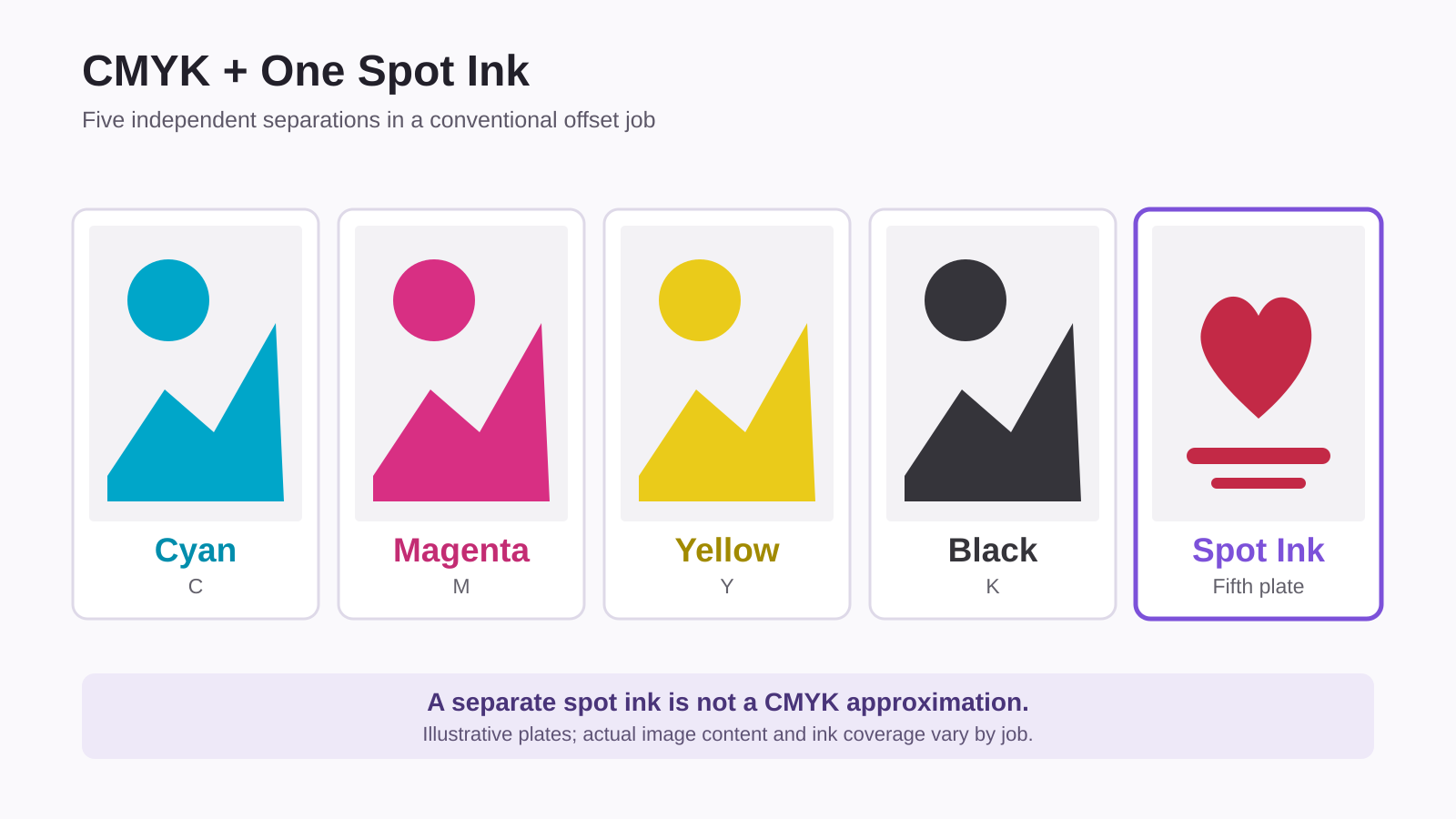
Imagine a marketing piece with CMYK photography and a single-color brand logo. The photography contributes to the process-color plates, while the logo contributes to the spot plate. If the logo is converted to CMYK, the intended spot separation disappears. If inconsistent spot swatches are used, the PDF may instead contain unintended extra plates.
How to Check Ink Separations Before Submission
Use a separations preview in your design software or a PDF inspection tool such as Adobe Acrobat Pro Output Preview. In the exported PDF:
- Review the list of process and spot separations.
- Confirm the required spot-ink name is present.
- Toggle each plate to check which objects contribute to it.
- Look for duplicate or unexpected spot separations.
- Confirm the intended spot objects have not been converted to CMYK.
One spot separation should identify all artwork intended for that ink and no unrelated artwork. If the expected plate is missing, revisit swatch definitions and export settings.
Spot Colors, CMYK, and Overprinting
A single job can combine CMYK and spot inks when the printer supports the requested ink combination. Keep each element's color assignment intentional: photographs can remain CMYK while approved brand elements use a specified spot swatch.
Overprinting determines whether one ink prints over another instead of removing the underlying ink. Overprinting a spot ink over CMYK can change the appearance of the overlap. It can be intentional, but it can also cause unexpected results if applied accidentally.
Review the overlap in Overprint Preview and in the exported PDF. Do not enable overprint universally or invent trapping settings: appropriate behavior depends on the ink, artwork, and output workflow. See Overprint in Print Files for a fuller explanation.
How to Export a PDF That Preserves Spot Colors
Export a composite print PDF containing the intended process and spot-color definitions unless the printer requests another format. A composite PDF can preserve separate ink channels without requiring the designer to supply individual plate files.
- Check every intended spot swatch before export.
- Review color-conversion and ink-manager options so required spot colors remain spot colors.
- Inspect transparency and overprint interactions where applicable.
- Use the printer's product template for finished size, bleed, and other layout requirements.
- Open the exported PDF and inspect the ink separations again.
There is no universal PDF export preset or PDF/X version required for every commercial spot-color job. Follow the printer's instructions. For ND4C's standard products, PDF is the accepted artwork format, and no single PDF/X version is mandatory. Refer to PDF Print File Requirements.
True Spot Inks vs. Finishing Spot Channels
A PDF may use a spot channel to identify a finishing operation—such as spot UV coating—rather than a colored printing ink. Both can appear in separation preview, but they serve different purposes.
| True Spot Ink | Finishing Spot Channel |
|---|---|
| Specifies a visible printed ink | Identifies a coating or other production operation |
| Uses an ink designation | Uses product- or printer-specific instructions |
| Contributes to printed color | May not represent printed color at all |
Do not apply Pantone ink naming or overprint assumptions to finishing channels. Use the specific finishing guide and template supplied by the printer.
Common Spot-Color File Setup Mistakes
| Mistake | Possible Result | Prevention |
|---|---|---|
| Pantone color defined as Process | No dedicated spot plate | Confirm Spot swatch type |
| Different names for one ink | Unexpected extra plates | Standardize swatches |
| Spot-to-CMYK export conversion | Loss of intended spot channel | Inspect PDF export and separations |
| Accidental overprint | Unexpected overlapping colors | Use Overprint Preview |
| Confusing ink with spot UV | Incorrect finishing instructions | Follow the finishing-specific setup |
| Unconfirmed ink availability | Quoting or production delays | Confirm with printer early |
Final Spot-Color Preflight Checklist
- ☐ Confirm the complete ink designation and job requirements.
- ☐ Use correctly defined Spot swatches for every true spot ink.
- ☐ Use consistent names across the document and placed files.
- ☐ Confirm the intended mix of CMYK and spot-colored elements.
- ☐ Review overprints and transparency interactions.
- ☐ Export the PDF without unintended spot-to-process conversion.
- ☐ Verify the spot channels in the exported PDF's separations preview.
- ☐ Check size and bleed against the product-specific template.
- ☐ Confirm the requested ink and production setup with the printer.
Frequently Asked Questions
Does selecting a Pantone color automatically make it a spot color?
No. The swatch must actually be defined as Spot. A CMYK approximation of a Pantone shade is a process-color definition.
Can a PDF contain CMYK and spot colors?
Yes. A print PDF can retain CMYK objects alongside one or more separate spot-color channels. The printer must support the intended combination.
How can I tell if a spot color was converted to CMYK?
Inspect the exported PDF's separations. If the required spot plate is missing and its objects appear only on CMYK plates, the intended spot definition may have been converted.
Do spot colors always require extra plates?
In conventional offset printing, a separate spot ink generally requires a dedicated plate. Other printing technologies may interpret spot-color definitions differently.
Is spot UV the same as a spot ink?
No. Spot UV is a selective coating. Its file may use a named spot channel, but that channel represents a finishing operation rather than an ordinary colored ink.
Can ND4C print a customer-specified Pantone ink?
ND4C can accommodate customer-specified Pantone inks through custom estimates. Confirm the ink and artwork requirements for the individual project before finalizing the file.
Before Sending Your Spot-Color Job to Print
The essential checks are straightforward: define the ink accurately, keep swatches consistent, preserve the intended separations, and inspect the exported PDF. For ND4C trade customers, specified Pantone jobs can be discussed through a custom estimate. New wholesale customers can sign up for access to trade pricing.