PRINT PLAYBOOK GUIDE - FILE SETUP & DESIGN
Part of Series: File Setup
Overprint Explained: How It Works in Commercial Printing
 ND4C Print Experts
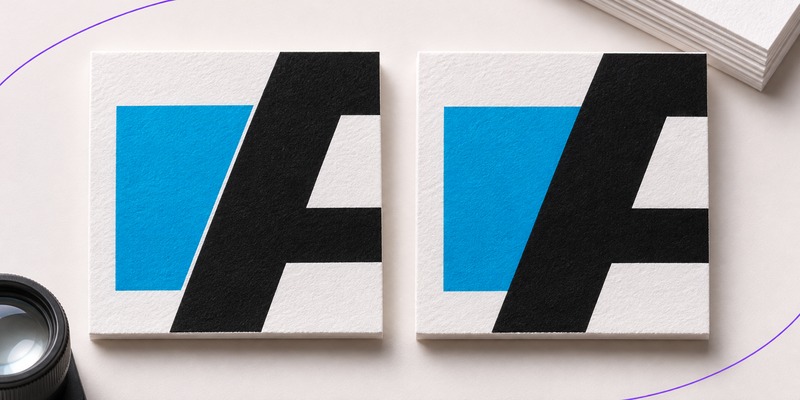
Overprint is a print setting that allows one ink to print over another without removing the underlying ink. It can help small black text avoid visible registration gaps and create intentional color effects. Used accidentally, however, it can change colors or make white artwork disappear.
Overprint vs. Knockout: What's the Difference?
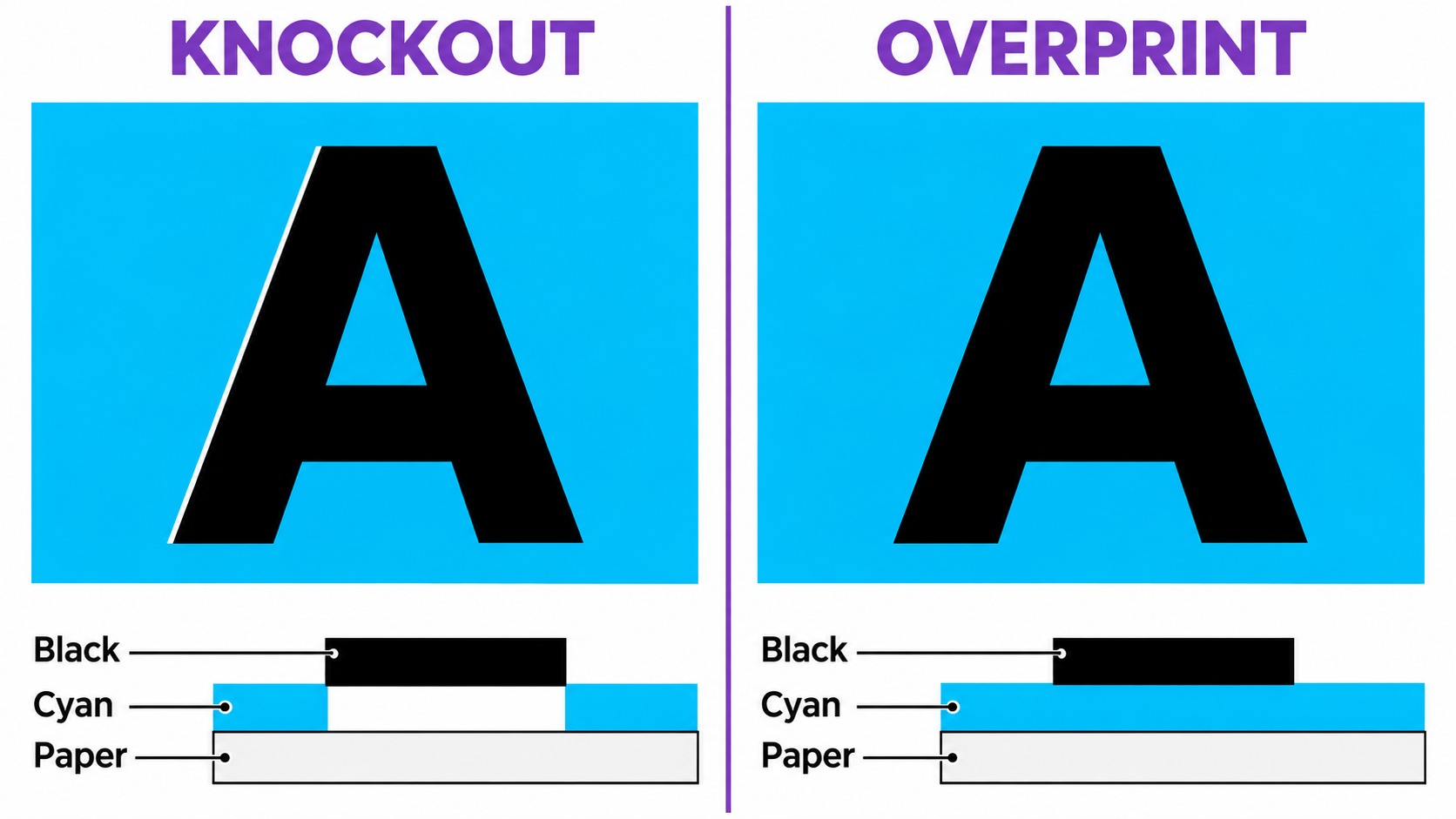
When printed objects overlap, the file determines whether the lower ink remains in the overlapping area. With knockout, the upper object removes the underlying ink from its shape. With overprint, the underlying ink remains and the upper ink prints on top.
| Setting | Ink behavior | Practical effect |
|---|---|---|
| Knockout | Underlying ink is absent beneath the top object. | Preserves the intended top color but can reveal light edges if ink registration shifts. |
| Overprint | Underlying ink remains beneath the top object. | May avoid registration gaps, but overlapping inks can change the color. |
How Do Overprinting Inks Interact?
Many process inks are not fully opaque. For example, cyan overprinted on magenta can produce a blue or violet overlap rather than preserving the cyan appearance. The result depends on ink formulation and opacity, paper, printing process, and color handling. Overprint settings therefore affect ink separations, not simply which object appears in front on screen.
Is Overprint the Same as Transparency?
No. Overprint controls whether underlying printing inks are retained. Transparency controls graphic opacity and blending behavior. They can look similar in a preview but are separate production concepts. See Transparency in Print Files for related PDF considerations.
When Should Overprint Be Used?
Small Black Text Over Colored Backgrounds
One common use is small text and fine rules made with 100% process black (K) over a colored background. If black letters knock out the background, a minor misalignment between ink separations can reveal a thin paper-colored fringe. With overprint, the background remains beneath the black, reducing this risk.
This does not mean all black objects should overprint. Large display lettering, rich-black builds, and shapes crossing different backgrounds need separate evaluation: retaining background inks may alter the final appearance. For small black type, use 100% K rather than an unnecessarily complex multi-ink build. See Rich Black vs. Standard Black.
Intentional Ink Mixing
Overprint can deliberately create a third color where two inks overlap. Such effects should be previewed using the actual separations and reviewed with the printer when the color result is critical. Spot inks deserve special attention because their opacity and interaction with other inks vary.
When Does Overprint Cause Problems?
White Objects Can Disappear
In ordinary CMYK printing on white paper, a white object specified as 0% C, M, Y and K contains no process ink. It appears white over a colored panel because it knocks out the inks beneath it. If set to overprint, it may leave the underlying inks unchanged and effectively disappear. Some software can correct specific cases automatically, but do not rely on that safeguard. Check white text and logos in overprint preview and the final PDF.
Unexpected Color Changes
A yellow shape over cyan should remain yellow if it knocks out the cyan; if it overprints, the overlap can appear green. Accidental overprinting may also darken objects or create inconsistent appearances where a shape crosses backgrounds with different ink combinations.
Large Black Shapes and Rich Black
Overprinting a large black graphic can retain different background ink combinations beneath different parts of the shape. Depending on the ink build and printing conditions, this may produce a less uniform result than intended. Evaluate the design instead of applying a blanket black-overprint rule.
How to Check Overprint Before Sending a PDF
- Enable overprint preview. In Adobe Illustrator or InDesign, select View > Overprint Preview. Examine white elements, black type, overlapping colors and spot-color artwork.
- Inspect object attributes. Check overprint fill and overprint stroke settings where applicable. These attributes can differ on the same object.
- Export the production PDF. The submitted PDF, not just the design file, needs review.
- Inspect PDF output. In Adobe Acrobat Pro, choose All tools > Use print production > Output preview. Simulate overprinting, toggle relevant separations and inspect suspected areas.
- Correct and recheck. Resolve unexpected color shifts or missing objects, export again, and review the final file.
On-screen simulation is a valuable diagnostic, not a guarantee of exact printed color. Results may vary with the ink, paper, output workflow and color-management settings. See PDF Print File Requirements for related preparation guidance.
Overprint vs. Trapping
Trapping is a related prepress technique that adds controlled, usually narrow overlaps at boundaries between adjacent colors to reduce visible gaps caused by registration variation. Overprint determines whether one ink remains beneath another. A trap may make use of overprinting in a narrow region, but turning on overprint for an entire object is not the same as creating an appropriate trap.
Trapping methods and requirements vary by equipment, material and workflow. Avoid applying arbitrary manual trapping widths without direction from the print provider.
Common Overprint Mistakes
| Mistake | Possible result | Prevention |
|---|---|---|
| White object set to overprint | White content disappears | Verify knockout in separation preview |
| Colored object accidentally overprinting | Unintended hue or darkness | Check attributes and overlapping inks |
| Every black object forced to overprint | Inconsistent black appearance | Evaluate by object size, build and background |
| Checking only normal preview | Hidden output problems | Use overprint simulation |
| Reviewing only the source artwork | Exported PDF issue missed | Inspect final PDF separations |
Overprint Preflight Checklist
- ☐ Review intended overprint fills and strokes.
- ☐ Confirm white text and graphics knock out correctly.
- ☐ Inspect small black type on colored backgrounds.
- ☐ Check overlapping colored and spot-color objects.
- ☐ Export and review the final PDF with overprint simulation and separations.
- ☐ Correct anything that changes appearance unexpectedly.
Overprint is one component of print-ready artwork. Also verify finished dimensions, bleed, safe areas, resolution and color mode. Product-specific artwork templates help establish the correct layout; ND4C provides free downloadable templates for its catalog products.
Frequently Asked Questions
Should black text always overprint?
No. Small 100% K text over colored backgrounds commonly benefits, but larger shapes, rich-black builds and special effects require individual judgment.
Should white text overprint?
Ordinary process-white artwork should generally knock out its background. Overprint can leave the background inks intact and make white elements disappear. Specialized white-ink processes require separate instructions.
Does overprint make colors darker?
It can. The added combination of retained underlying inks may darken an area or shift its hue.
Can I check overprint in a PDF?
Yes. Acrobat Pro Output Preview can simulate overprint and display individual ink separations.
Is overprint the same as trapping?
No. Overprint controls ink overlap behavior; trapping adjusts boundaries to help compensate for registration variation.
Can an overprint error delay production?
Yes. Missing artwork or unintended ink interactions may require corrected files before a job proceeds.
Prepare Artwork with Confidence
Intentional overprint settings can improve the reliability of small black details, while careful PDF review helps catch unexpected results. Trade customers can start with ND4C's free product-specific templates. ND4C serves print resellers and other qualified trade customers exclusively; sign up for access to wholesale pricing.
ND4C is a wholesale trade printer with more than two decades of industry experience. Our Print Playbook guides draw on firsthand expertise across prepress, production, customer support, design, and print technology to help retail printers and print resellers make better production decisions.